AI Zoom background generator: call from any room you describe
Describe a room, ask for a clear middle where you sit, and get a background ready to upload to Zoom, Microsoft Teams, or Google Meet.
- Widescreen 16:9, the shape of a webcam feed
- Copy-ready prompts that keep the middle clear for you
- 100 free credits, no credit card required
Realistic, funny, and holiday Zoom backgrounds
Copy a prompt, change the room or the colors, and make it yours.
Realistic home backgrounds
A tidy room that looks real, without tidying your real one.
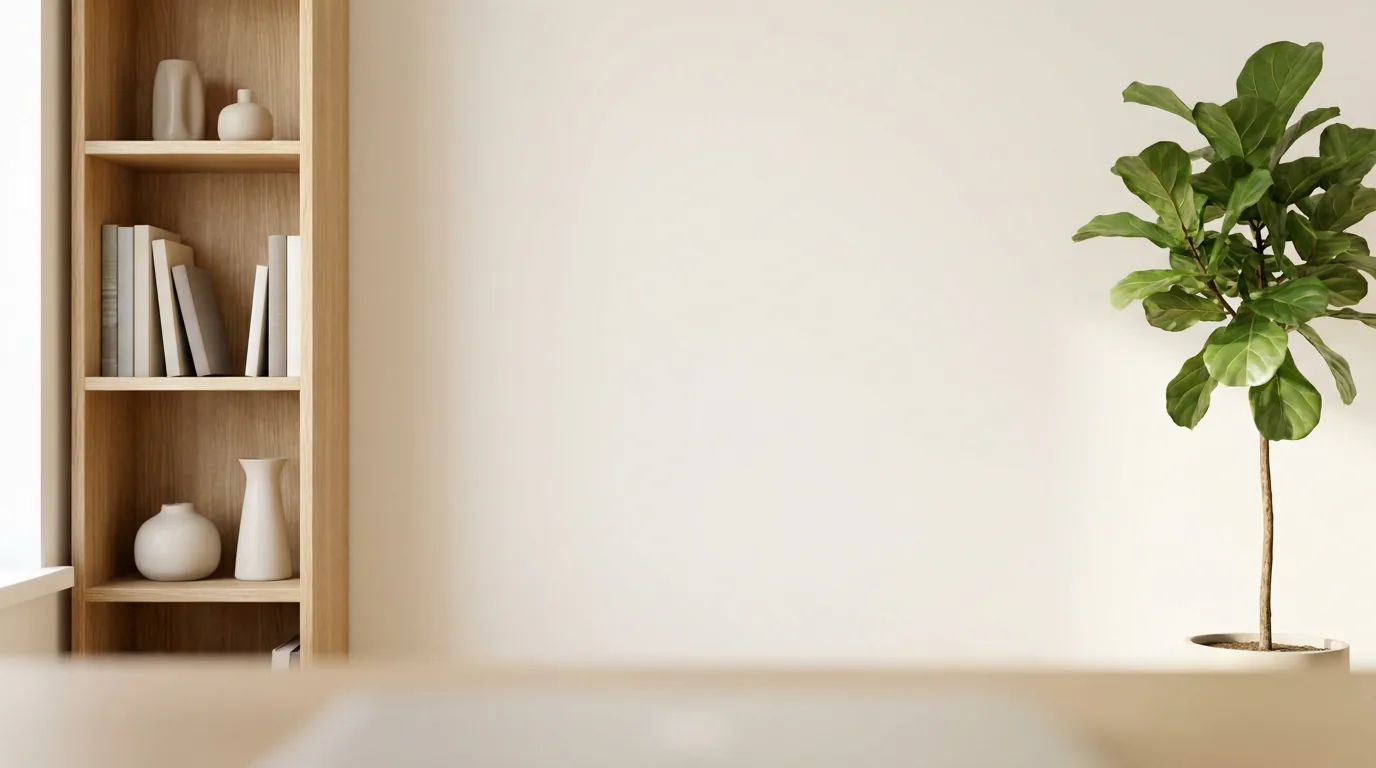
Photorealistic video call background of a bright Scandinavian home office, seen from desk height. A light oak bookshelf with a few books and ceramics on the left edge, a tall leafy fiddle-leaf fig plant on the right edge, soft daylight from a window at the side. The centre and lower centre of the frame is a calm, plain warm-white wall with nothing on it, so a person can sit in front of it. Gentle shallow depth of field, natural colours, eye-level camera, no people, no text, no logos, no screens.
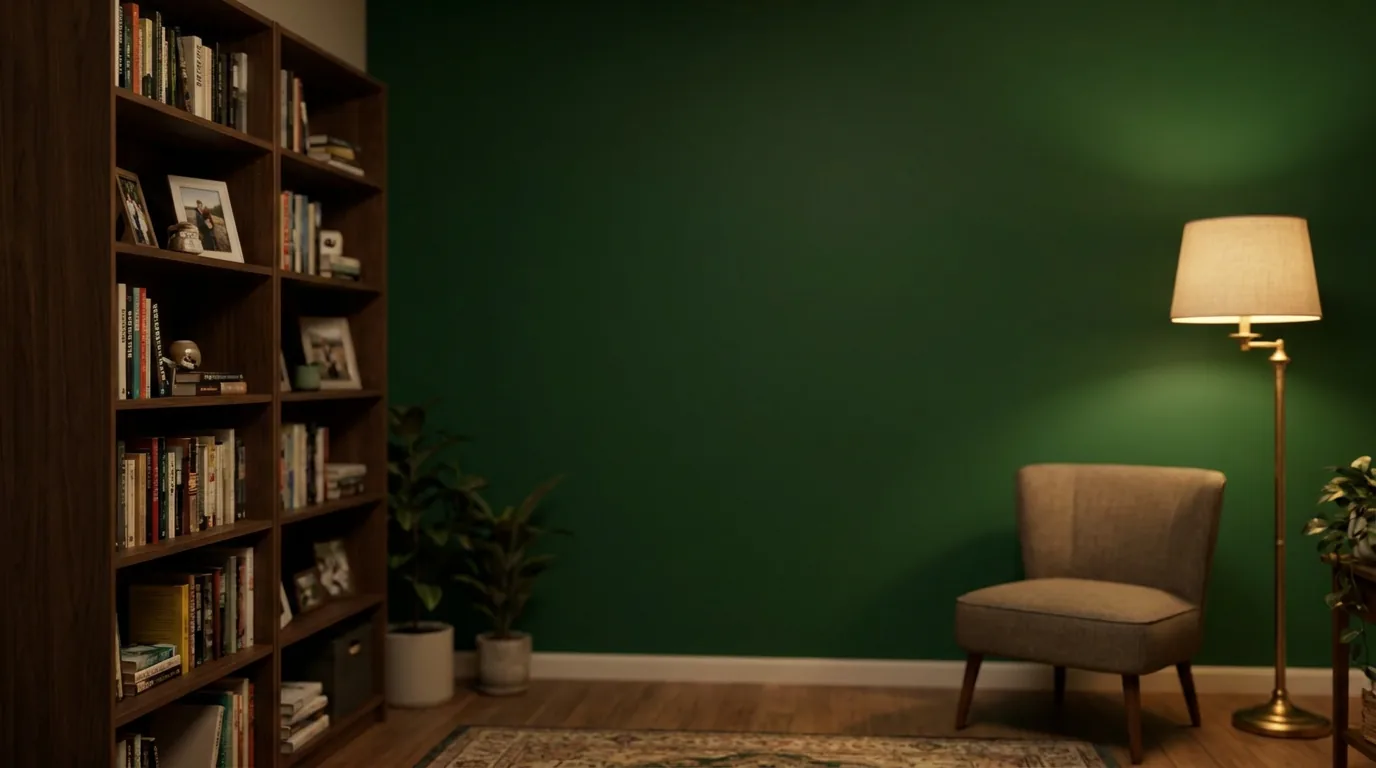
Photorealistic video call background of a cozy living room in the evening. A floor-to-ceiling walnut bookshelf at the far left, a warm brass floor lamp and a small armchair at the far right, a deep green painted wall. The centre and lower centre of the frame is a plain section of the green wall with nothing on it, so a person can sit in front of it. Warm lamp light, slight background blur, eye-level camera, no people, no text, no logos, no screens.
Office and branded Zoom backgrounds
A professional backdrop for client calls, in your company colors.
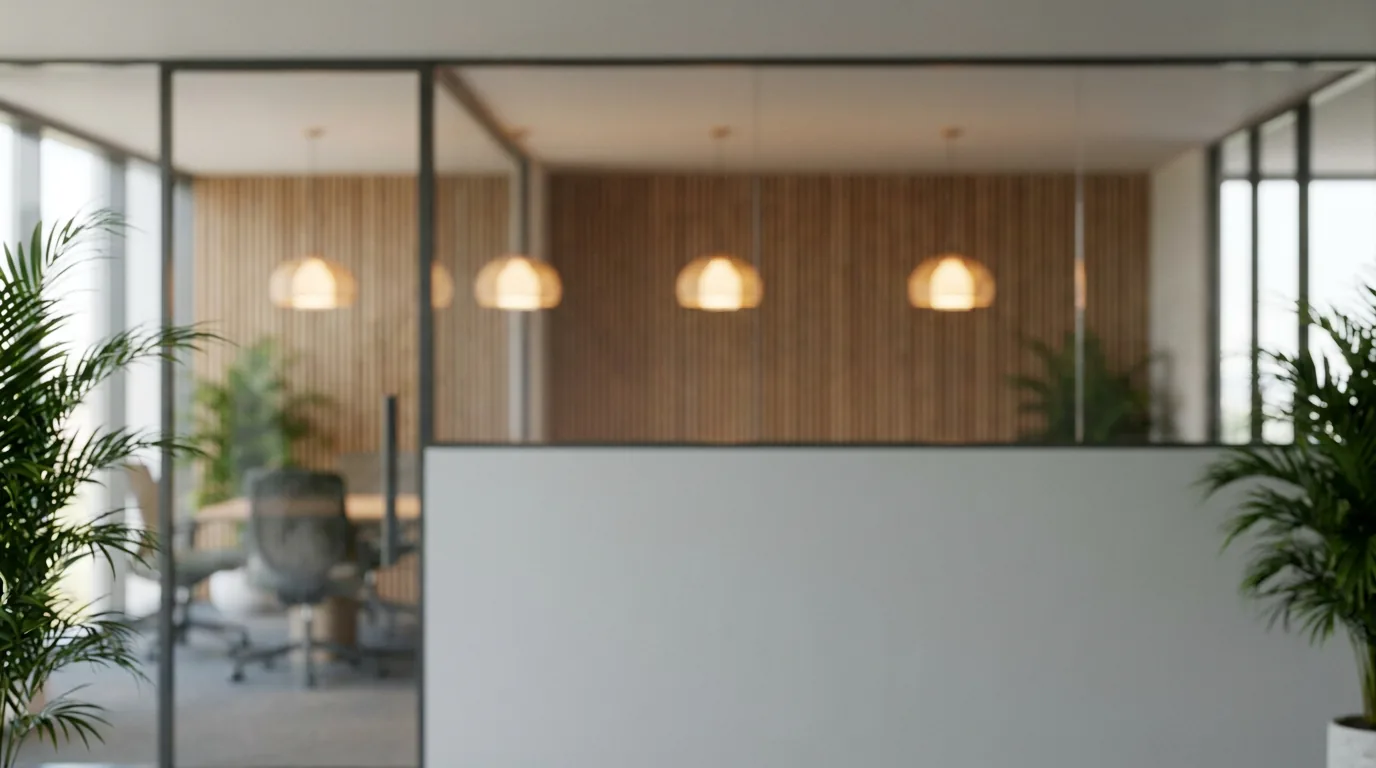
Photorealistic video call background of a modern open-plan office with glass-walled meeting rooms, softly out of focus. Warm pendant lights, wooden slat wall panels and a few green plants at the left and right edges. The centre and lower centre of the frame is uncluttered: a soft blurred wall with no objects, so a person can sit in front of it. Eye-level camera, daytime, natural colours, no people, no text, no logos, no signs, no screens.
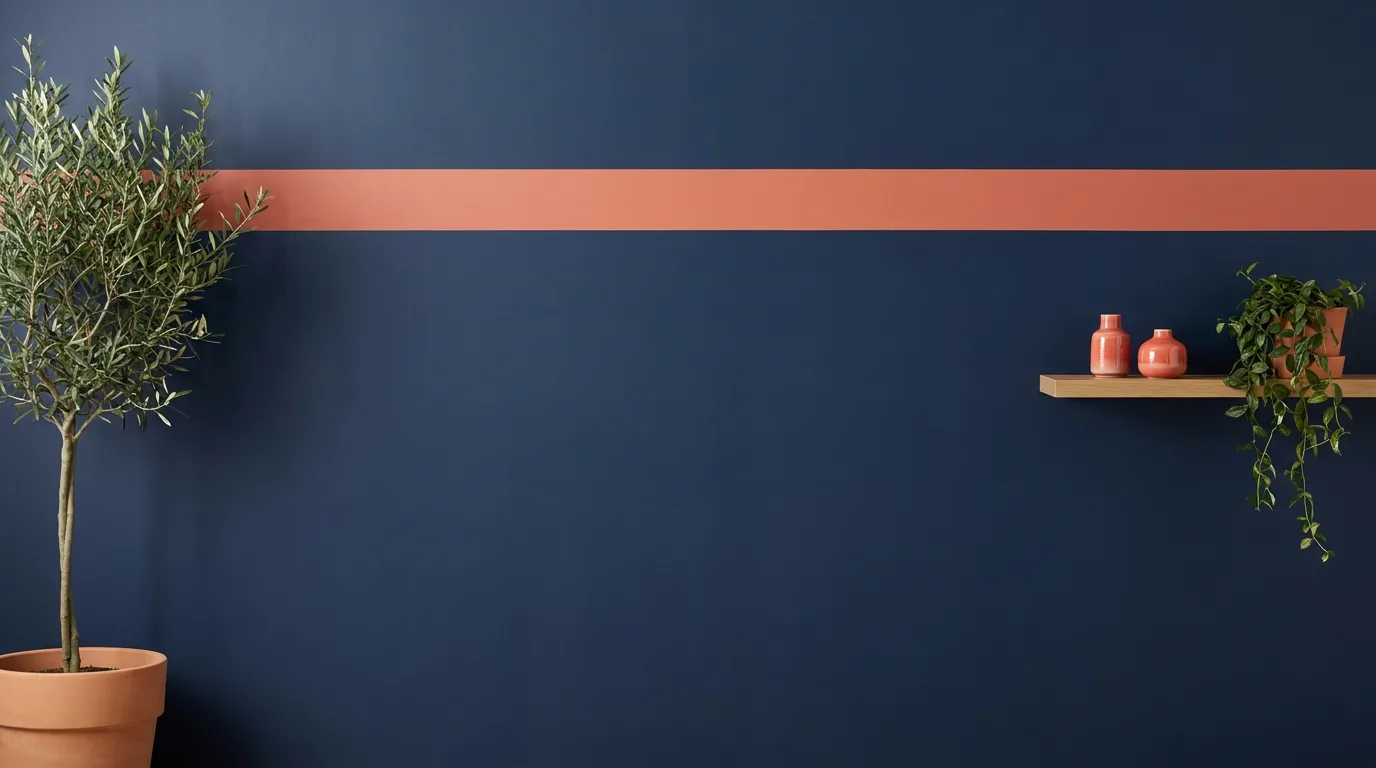
Photorealistic video call background of a modern company office wall in a navy and coral brand palette. A matte navy painted wall with a single coral horizontal stripe running across the upper third, a slim oak shelf with two small coral ceramic vases and a trailing plant at the far right, and a tall potted olive tree at the far left. The upper left of the wall is open plain navy paint that blends into the scene, leaving room for a logo. The centre and lower centre of the frame is plain navy wall with nothing on it, so a person can sit in front of it. Soft even studio lighting with a gentle falloff, eye-level camera, no panels, no boxes, no frames, no rectangles, no people, no text, no letters, no logos, no screens.
Funny Zoom backgrounds
Something to talk about before the meeting starts.
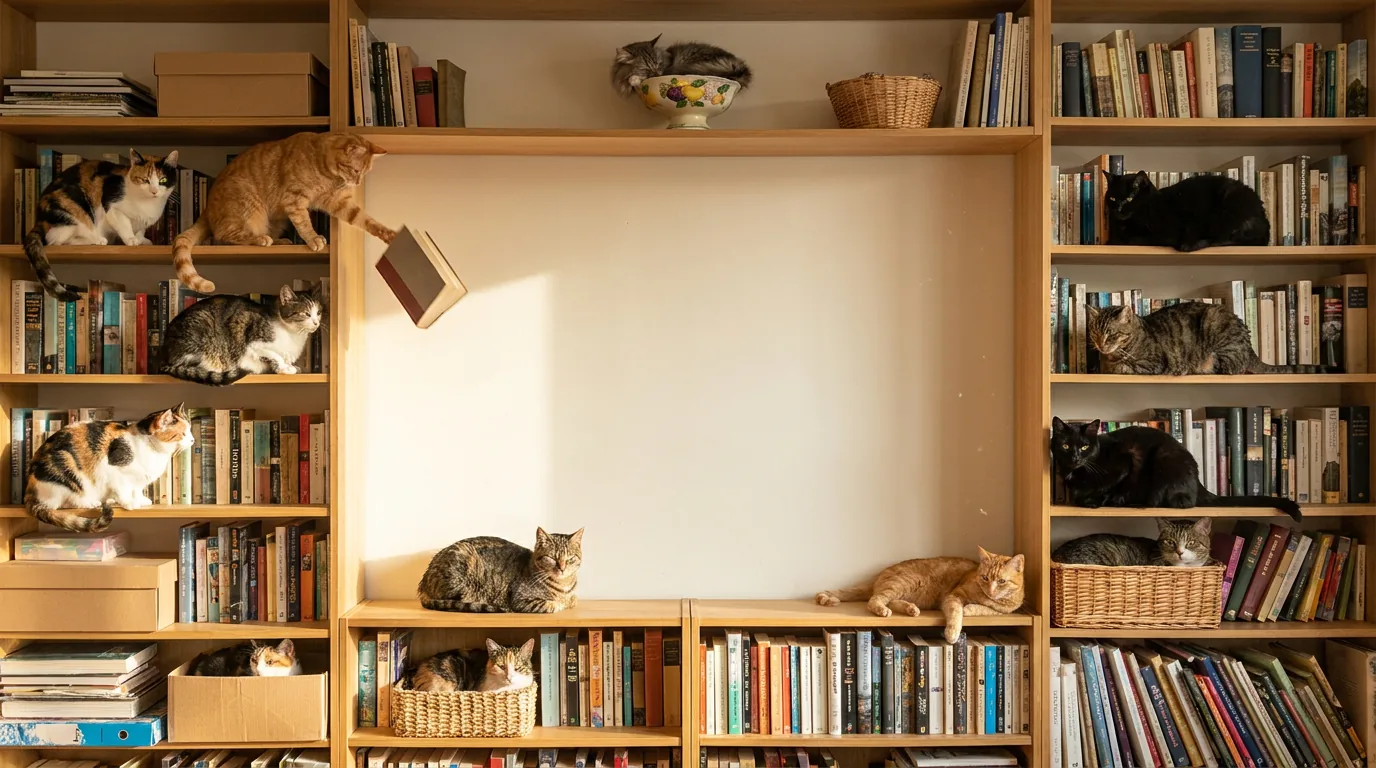
Funny photorealistic video call background of a home library where cats have taken over: a dozen cats of different colours lounging on the bookshelves along the left and right edges, one cat knocking a book off a shelf, another asleep in a fruit bowl on a high shelf. The centre and lower centre of the frame is a plain cream wall with no cats or objects, so a person can sit in front of it. Warm afternoon light, eye-level camera, no people, no text, no logos, no screens.

Funny photorealistic video call background of an office at the bottom of the sea, seen through a large round submarine window behind the desk: a curious octopus, a sea turtle and a school of bright fish drift past outside, with coral at the lower left and right. Inside, riveted brass walls frame the window. The centre and lower centre of the frame is calm open blue water with nothing in it, so a person can sit in front of it. Eye-level camera, soft caustic light, no people, no text, no logos, no screens.
Nature backgrounds
A window onto somewhere calmer than your inbox.
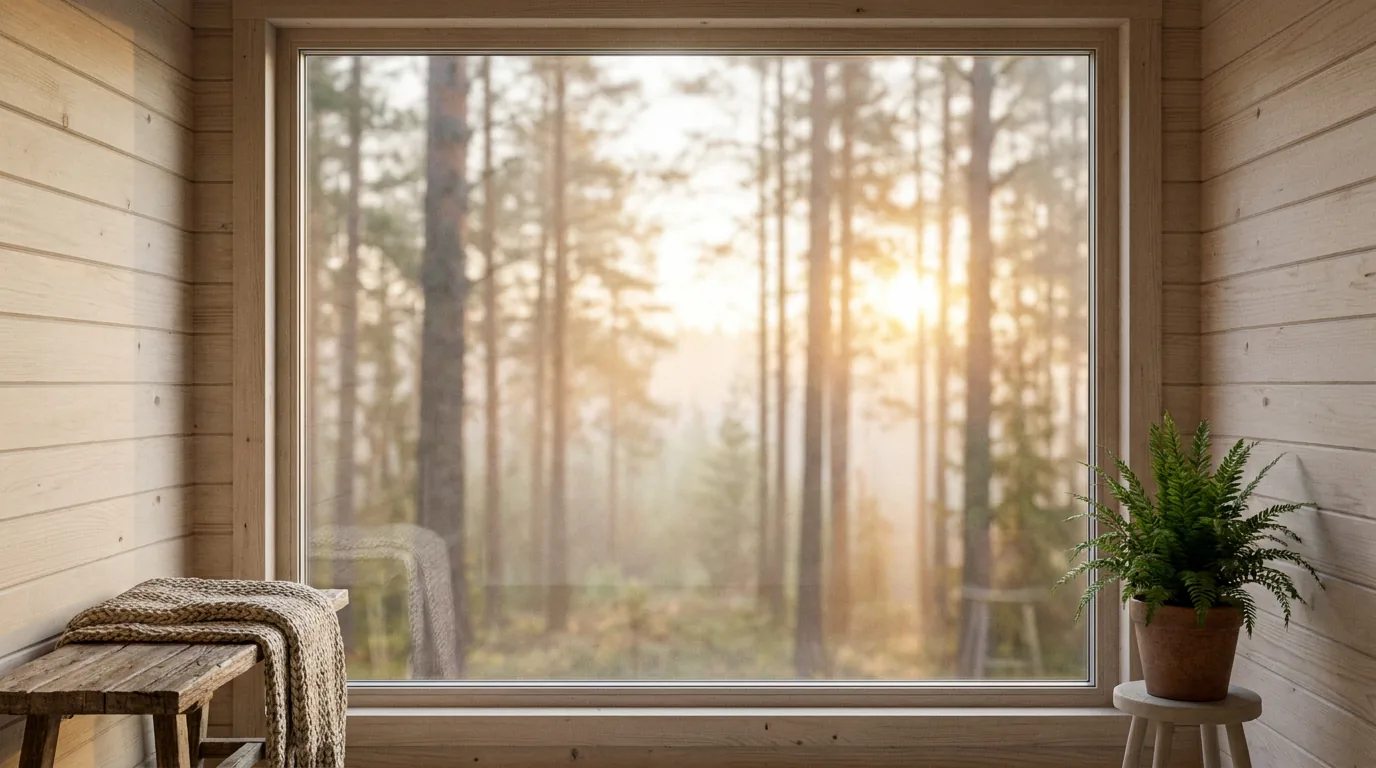
Photorealistic video call background of a wooden cabin room with a large picture window looking out onto a misty pine forest at sunrise. Pale wood walls, a woven blanket on a bench at the far left, a potted fern at the far right. The centre and lower centre of the frame is the soft, out-of-focus misty forest seen through the window, with no objects in front of it, so a person can sit there. Calm morning light, eye-level camera, no people, no text, no logos, no screens.
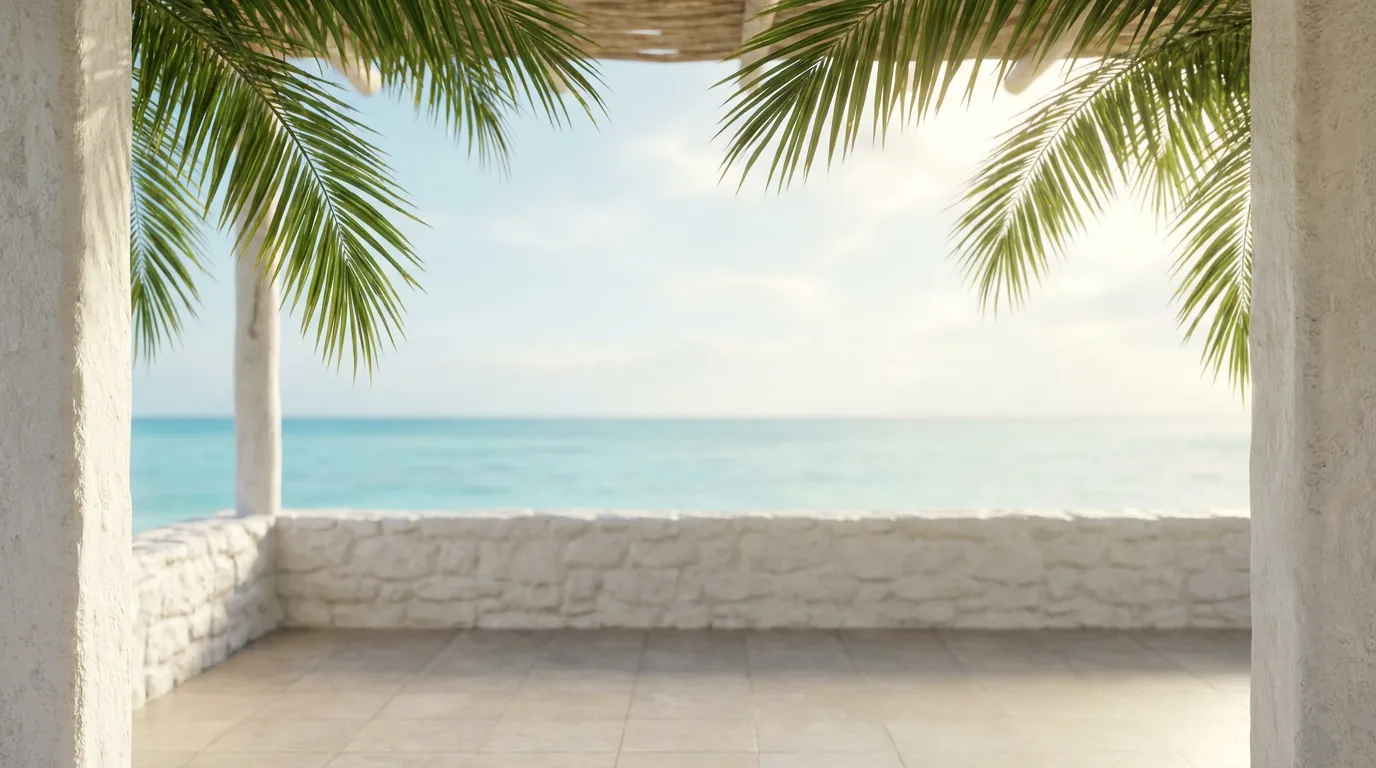
Photorealistic video call background of a shaded beach terrace on a tropical island: white plaster columns at the left and right edges, palm fronds hanging into the top corners, and a calm turquoise sea and pale sky across the middle. The centre and lower centre of the frame is the open soft-focus sea and a low white terrace wall, with no objects in front of it, so a person can sit there. Bright late-morning light, eye-level camera, no people, no text, no logos, no boats, no screens.
Christmas, holiday, and seasonal backgrounds
Christmas, Thanksgiving, and winter backgrounds for Zoom and Teams calls.

Photorealistic video call background of a cozy Christmas living room at night. A decorated Christmas tree with warm white lights at the far left, a stone fireplace with stockings and a pine garland at the far right, wrapped presents on the floor at the edges. The centre and lower centre of the frame is a plain cream wall softly lit by the tree lights, with nothing on it, so a person can sit in front of it. Warm bokeh, slight background blur, eye-level camera, no people, no text, no letters, no logos, no screens.

A festive video call background with the words "Happy Holidays" in large, elegant gold script centred across the top third, flat full-bleed design filling the entire frame, no card object, table, wall, shadow or mockup. Deep forest-green background with a soft gold glow, a band of pine sprigs, red berries and small gold baubles along the very top edge and down the left and right edges. The centre and lower centre of the frame is plain deep green with no decoration, so a person can sit in front of it. The lettering is the focal point and readable at thumbnail size, and no other words or numbers anywhere.
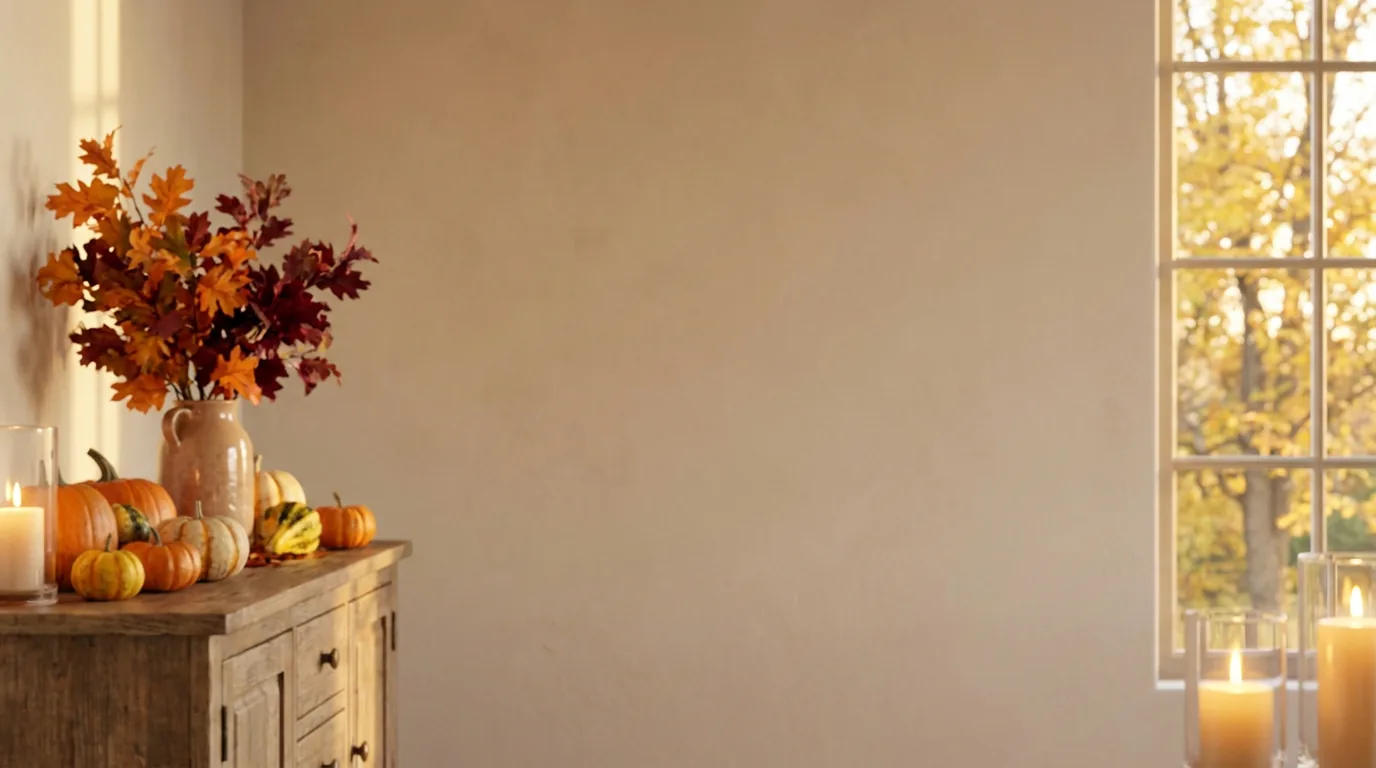
Photorealistic video call background of a warm autumn dining room for Thanksgiving. A rustic wooden sideboard at the far left with pumpkins, gourds and a vase of orange and burgundy leaves, a window with golden autumn trees outside at the far right, candles glowing at the edges. The centre and lower centre of the frame is a plain warm-beige wall with nothing on it, so a person can sit in front of it. Golden-hour light, slight background blur, eye-level camera, no people, no food on a table, no text, no logos, no screens.
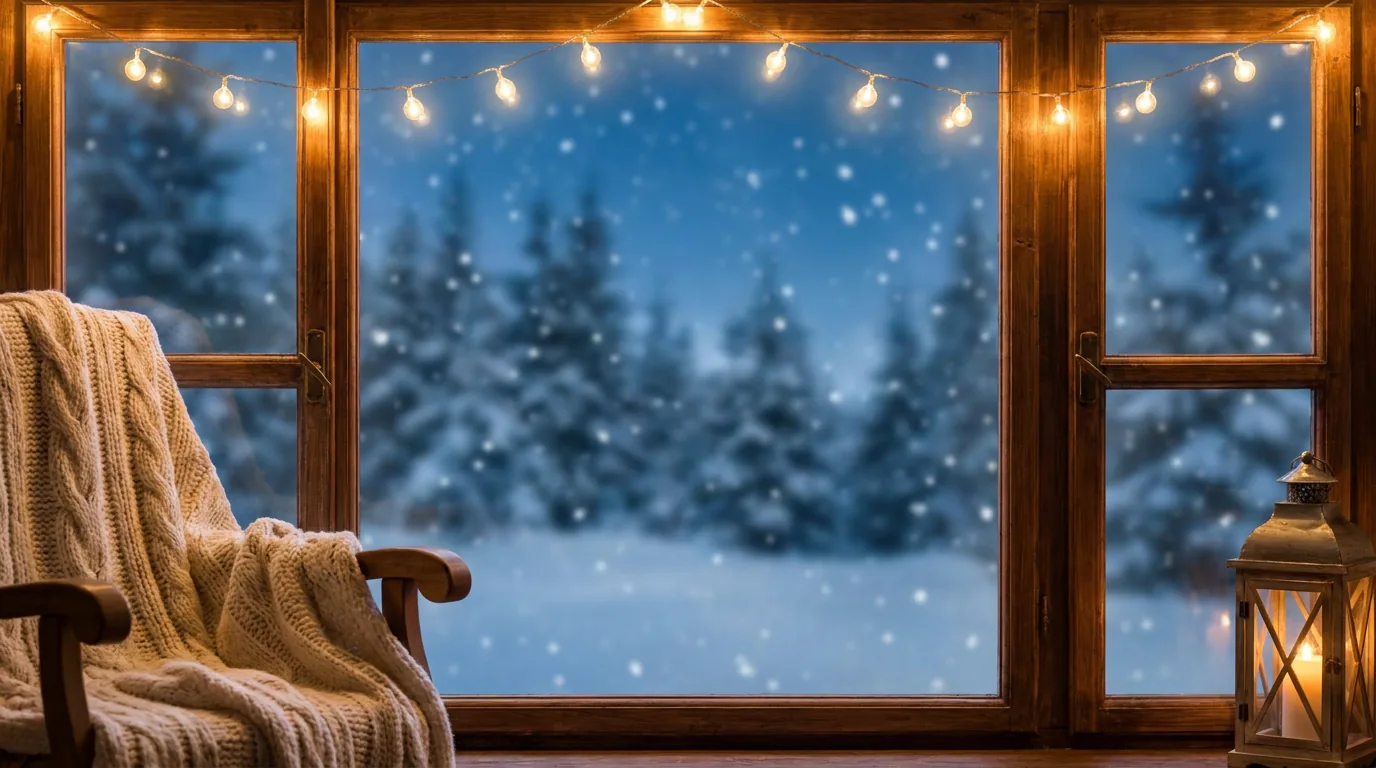
Photorealistic video call background of a snowy winter evening seen from inside a warm room: a large window behind the desk looks out on snow-covered fir trees and gently falling snow under a deep blue dusk sky. Warm string lights along the top of the window frame, a knitted throw on a chair at the far left, a lantern with a candle on the windowsill at the far right. The centre and lower centre of the frame is the soft, out-of-focus snowy view with nothing in front of it, so a person can sit there. Cozy warm interior light, eye-level camera, no people, no text, no logos, no screens.
How the Zoom background generator works
No design skills needed. Three steps from idea to your next call.
Describe your background
Try "a bright home office with a plant on the right" or "a cozy Christmas living room with the tree on the left," and say the middle should stay plain.
Pick 16:9 and generate
Choose the 16:9 landscape ratio so the image matches your camera frame, then generate. Not right yet? Ask for a change.
Download and set it
Save the image, then upload it as your virtual background in Zoom, Microsoft Teams, or Google Meet.
How to change your background in Zoom, Teams, and Meet
Download your background from Ambience AI, then add it in your call app's settings. You upload the file yourself, so it works in any app that takes a custom image.
Zoom
- Open the Zoom desktop app and go to Settings.
- Choose Backgrounds & effects, then Virtual backgrounds.
- Click the plus button, choose Add image, and pick your downloaded background.
Microsoft Teams
- Before you join, or during a meeting, open Video effects (in a meeting it sits under More).
- Choose Add new under the background options.
- Upload your downloaded background and select it.
Google Meet
- On the preview screen, or during a call, open Apply visual effects.
- Go to Backgrounds and choose the upload option.
- Pick your downloaded background and it applies right away.
Zoom, Microsoft Teams, and Google Meet are trademarks of their owners. Ambience AI is not affiliated with them. Menu names can change between app versions.
Professional Zoom backgrounds that frame you
Match the wall to your brand, then refine the scene in chat until it fits your calls.
Your brand colors
Name your palette and get an office or studio wall that matches it, with open wall space left for a logo if you want one.
Refine in chat
Ask for warmer light, fewer objects, or a different season, and get a new version without starting over.
Zoom background generator FAQs
Answers about making and using virtual backgrounds.
It is an AI image tool that turns a short description into a custom virtual background. Describe the room, scene, or theme you want, and Ambience AI creates an image in the 16:9 landscape ratio you choose, ready to download and upload to Zoom, Microsoft Teams, or Google Meet.
Yes. You can start with 100 free credits and no credit card required. Paid plans add more credits when you want a full set of backgrounds for work, home, and every season.
Yes. Ambience AI gives you a regular image file, so you can upload it as a virtual background in Zoom, Microsoft Teams, Google Meet, or any other video call app that accepts custom images. Ambience AI is not affiliated with Zoom, Microsoft, or Google; you add the image yourself in each app's background settings.
In the Zoom desktop app, open Settings, choose Backgrounds & effects, then Virtual backgrounds. Click the plus button, choose Add image, and pick the background you downloaded from Ambience AI. In Microsoft Teams, use Video effects and Add new; in Google Meet, use Apply visual effects, then Backgrounds.
Widescreen 16:9 landscape, the same shape as a laptop camera feed, so the background fills the frame without stretching. Choose the 16:9 ratio when you generate, then download the image and upload it as is.
Describe a real-looking room with a plain wall or soft, out-of-focus view in the center, and put shelves, plants, or lamps at the left and right edges. Asking for eye-level camera height and natural light makes the scene match how your webcam sees you.
You sit in the middle of the frame, so anything placed there ends up hidden behind your head or looks like it is growing out of it.
Yes. Name your brand colors and the look you want, such as a navy wall with a coral stripe, and leave open wall space if you plan to add your logo. Premium, Team, and Business plans include a commercial license.
Your own preview is often mirrored, the way a mirror shows you. Other people on the call see the lettering the right way around.
Make the background for your next call
Start free with 100 credits. No credit card required.
Create My Background Free