Write Better Prompts for Flux 2 Pro Images
Last Updated
Mar 17, 2026
Models Tested
FLUX 2 Pro
Introduction to Flux 2 Pro Prompting
Flux 2 Pro is a 32-billion parameter image generation model from Black Forest Labs. It pairs a Mistral-3 24B vision-language model (VLM) with a rectified flow transformer, giving it a deep understanding of real-world materials, lighting, and spatial relationships.
Unlike earlier Flux models that used dual text encoders, Flux 2 Pro uses a single prompt field powered by the VLM. This means it understands natural language the way a person would, so writing in clear, descriptive prose produces the best results. You can apply these techniques directly with Ambience AI's image generator, which uses Flux 2 Pro as its Standard model.
Whether you're creating ambient scenes, product imagery, or creative art, this guide will help you write prompts that get the most out of Flux 2 Pro's capabilities.
How Flux 2 Pro Reads Your Prompts
Flux 2 Pro processes your prompt through its Mistral-3 vision-language model, which understands language contextually rather than matching keywords. This means you should write the way you'd describe an image to another person.
Key Principles
- Single prompt field: Flux 2 Pro takes one prompt. Write in flowing, descriptive prose instead of keyword lists.
- 32K token capacity: The model accepts up to 32,000 tokens, but 30 to 80 words is the sweet spot for most images. Longer prompts can add detail for complex scenes.
- Front-load your subject: Word order matters. Place the most important element at the beginning of your prompt so the model prioritizes it.
- No negative prompts: Flux 2 Pro does not support negative prompts. Describe what you want to see, not what you want to avoid. Instead of "no blur," write "sharp focus" or "crisp detail."
- Use positive phrasing: The VLM responds best to affirmative descriptions. "A well-lit room" works better than "a room that is not dark."
Upgrading from Flux 1?
Flux 1 used dual text encoders (T5 + CLIP) with separate prompt fields and keyword-based styling. Flux 2 Pro replaces this with a single VLM-powered prompt. You no longer need to split your description into sentences and keywords. Write one cohesive description in natural prose and let the VLM handle the rest.
Prose vs. Keywords
Keyword list (less effective):
"cat, windowsill, sunlight, fur, cozy, warm, detailed"
Prose description (more effective):
"A tabby cat curled up on a sunny windowsill, warm afternoon light illuminating its striped fur, soft focus background of a cozy living room"
The Prompt Framework: Subject + Action + Style + Context
Structure your prompts around four elements. You don't need all four every time, but this framework helps you write prompts that are specific enough for Flux 2 Pro to produce exactly what you envision.
1. Subject
The main focus of the image. Be specific about what it is, what it looks like, and where it's positioned.
2. Action or State
What the subject is doing or how it exists in the scene. A resting cat, a flowing river, a person reading.
3. Style
Visual style, camera settings, film stock, or artistic references. This shapes the overall look and feel.
4. Context
Environment, lighting, atmosphere, time of day, and mood. These details ground the image in a believable setting.
Example: Framework in Action
"A cozy wooden cabin nestled in a peaceful forest setting, warm golden light glowing from windows, stone chimney with gentle smoke rising, surrounded by tall pine trees, soft evening light filtering through branches, rustic wood exterior with natural weathering, shot on Canon EOS R5, 35mm lens"
Subject: A cozy wooden cabin with a stone chimney
Action/State: Warm golden light glowing from windows, smoke rising
Style: Shot on Canon EOS R5, 35mm lens
Context: Peaceful forest, tall pine trees, soft evening light
Optimal Prompt Length
Short (10-30 words)
Good for simple subjects with a clear style. The model fills in details on its own.
Medium (30-80 words) ✓
Recommended for most images. Enough detail for control without overwhelming the model.
Long (80+ words)
Useful for complex scenes with many elements. Keep each detail purposeful to avoid conflicts.
Advanced Techniques for Better Results
Flux 2 Pro's VLM backbone understands real-world photography concepts. You can reference specific cameras, lenses, film stocks, and lighting setups to fine-tune your results.
Camera and Lens References
Adding camera and lens specs gives the model strong cues about depth of field, perspective, and overall look. This was one of the most effective techniques in our testing.
- "shot on Sony A7IV, 35mm f/1.4" for shallow depth of field portraits
- "shot on Canon EOS R5, 35mm lens" for sharp, detailed scenes
- "shot on Hasselblad X2D with 45mm lens" for medium format quality
- "24-70mm lens" for versatile landscape framing
Film Stock and Era References
Reference specific film stocks or photographic eras to control color grading and grain.
- "Kodak Portra 400" for warm, natural skin tones
- "Fuji Velvia 50" for vivid, saturated landscapes
- "80s vintage photography" for retro color cast and grain
- "photorealistic landscape photography style" for clean, modern results
Lighting Descriptions
Lighting has the biggest impact on image quality with Flux 2 Pro. Be specific about the type, direction, and quality of light.
- "golden hour lighting filtering through mist"
- "warm ambient lighting from pendant lamps and window light"
- "soft diffused light breaking through low clouds"
- "studio lighting catches the metal edges"
- "warm golden hour lighting mixing with cool daylight"
HEX Color Codes
Flux 2 Pro can interpret HEX color codes when paired with the word "color." For example, "a vase in #FF6B35 color" or "walls painted in #2C3E50 color." This is useful when you need precise brand colors or specific palettes.
Text Rendering in Images
Flux 2 Pro achieves 92% accuracy on complex text layouts, exceeding DALL-E 3 by roughly 10 percentage points. To render text, include it in quotes within your prompt: "a neon sign reading 'Open Late' above a bookstore entrance." Keep text short and prominent for best results.
Prompt Upsampling
Ambience AI automatically expands short prompts into detailed descriptions using an AI assistant. This is helpful when you have a general idea but want the model to fill in creative details. For maximum control, write your own detailed prompt and the system will use it as-is.
Multilingual Support
The Mistral-3 VLM supports multiple languages. You can write prompts in languages other than English, though English prompts have the most training data coverage and tend to produce the most consistent results.
Be Intentional with Descriptors
All AI image models carry biases from their training data. When generating images of people, be specific about the attributes that matter to your creative vision. Specify characteristics explicitly rather than relying on the model's defaults to get results that match your intent.
Prompt Templates for Common Scenes
These templates follow the Subject + Action + Style + Context framework. Cozy interiors and portraits are the two most popular categories among Ambience AI creators, so we lead with those.
Cozy Interiors
Template:
[Interior space] with [key furniture/objects], [lighting description], [atmospheric details], [mood], [camera spec]
Example:
"A cozy reading nook in a small apartment, late afternoon golden light streaming through sheer linen curtains, overstuffed armchair with a knit throw blanket, stack of well-worn books on a wooden side table, warm Edison bulb lamp glowing softly, rain streaking down the window glass, steam rising from a ceramic mug on the windowsill, shot on Sony A7IV, 35mm f/1.4, shallow depth of field"
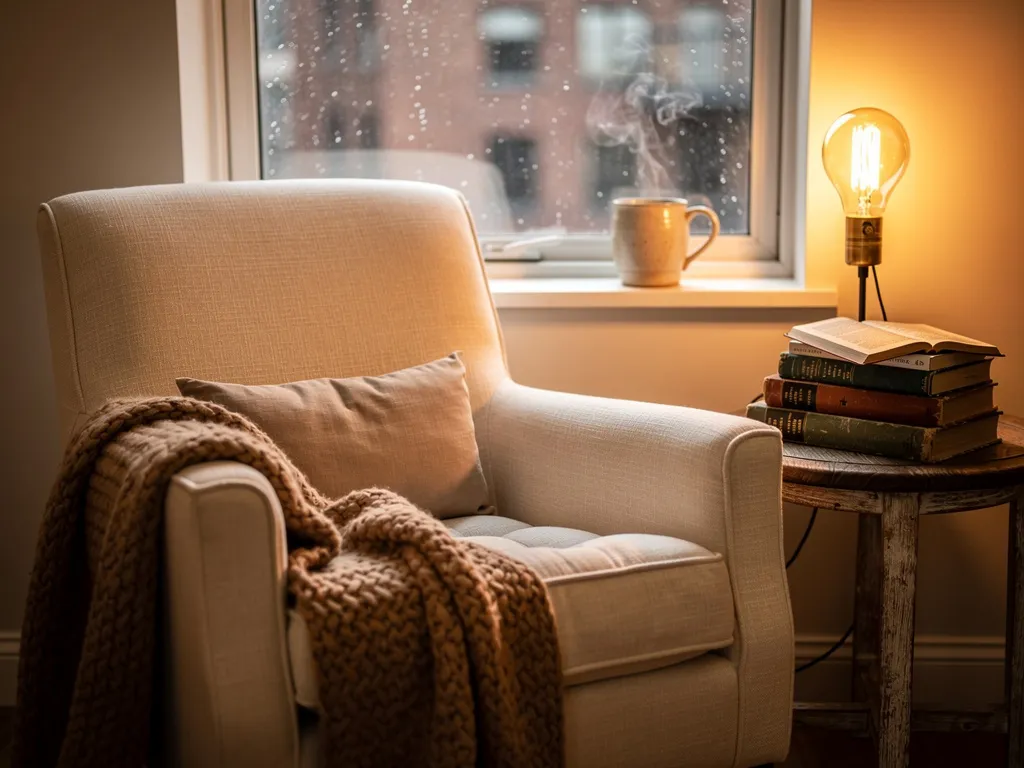
Key Tips:
- Describe the interplay of multiple light sources (lamps, windows, candles)
- Name specific materials (leather, wood, stone, linen) for texture detail
- Include atmospheric elements like steam, dust motes, or rain on glass
Portraits and People
Template:
[Person description] [doing action] in [setting], [lighting], [style/mood], [camera and lens for depth of field]
Example:
"Candid portrait of a young woman sitting in a sunlit cafe window seat, golden hour light catching loose strands of hair, wearing an oversized linen shirt, holding a paperback book with one hand, soft smile, warm skin tones, bokeh of rainy street scene through the window behind her, shot on Canon EOS R5, 85mm f/1.2, natural color grading"
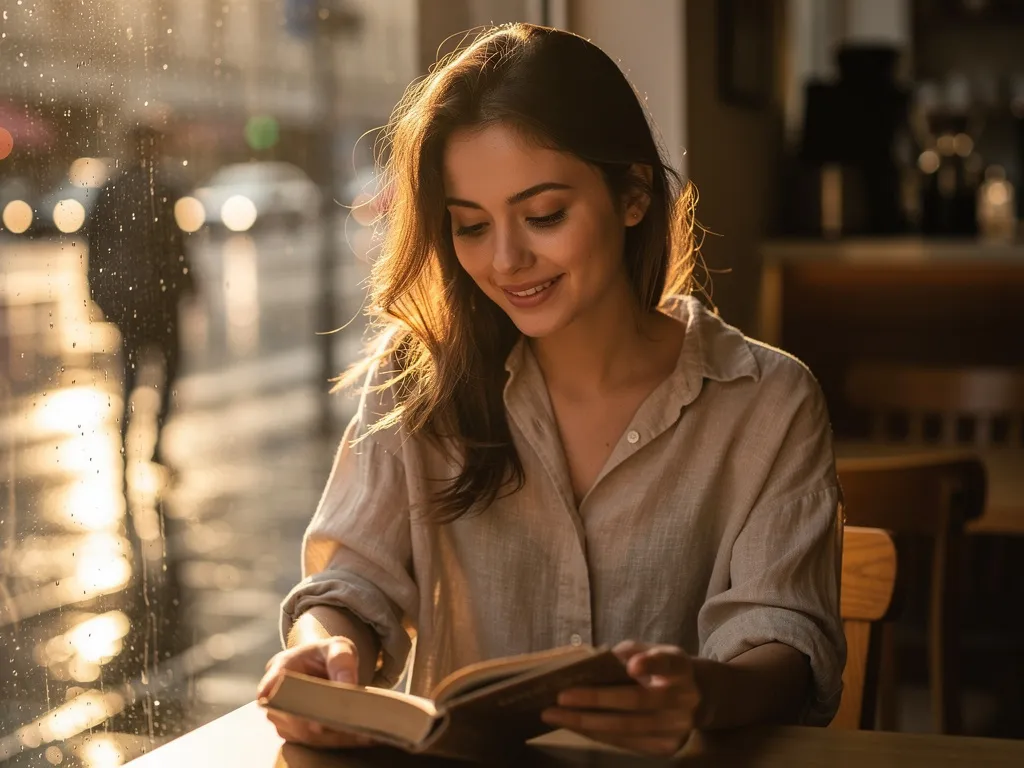
Key Tips:
- Use a long focal length (85mm, 105mm) for flattering portrait perspective
- Describe the light direction and quality for natural-looking skin
- Be specific about appearance details that matter to your vision
Natural Landscapes
Template:
[Landscape type] with [natural features], [atmospheric conditions], [lighting and time of day], [mood], [photography style and lens]
Example:
"Serene mountain lake surrounded by towering peaks, thick morning fog rolling across the water surface, misty atmosphere with soft diffused light, pine trees along the shoreline partially obscured by fog, calm reflective water, moody and tranquil scene, golden hour lighting filtering through the mist, photorealistic landscape photography style, shot on Sony A7IV with 24-70mm lens"
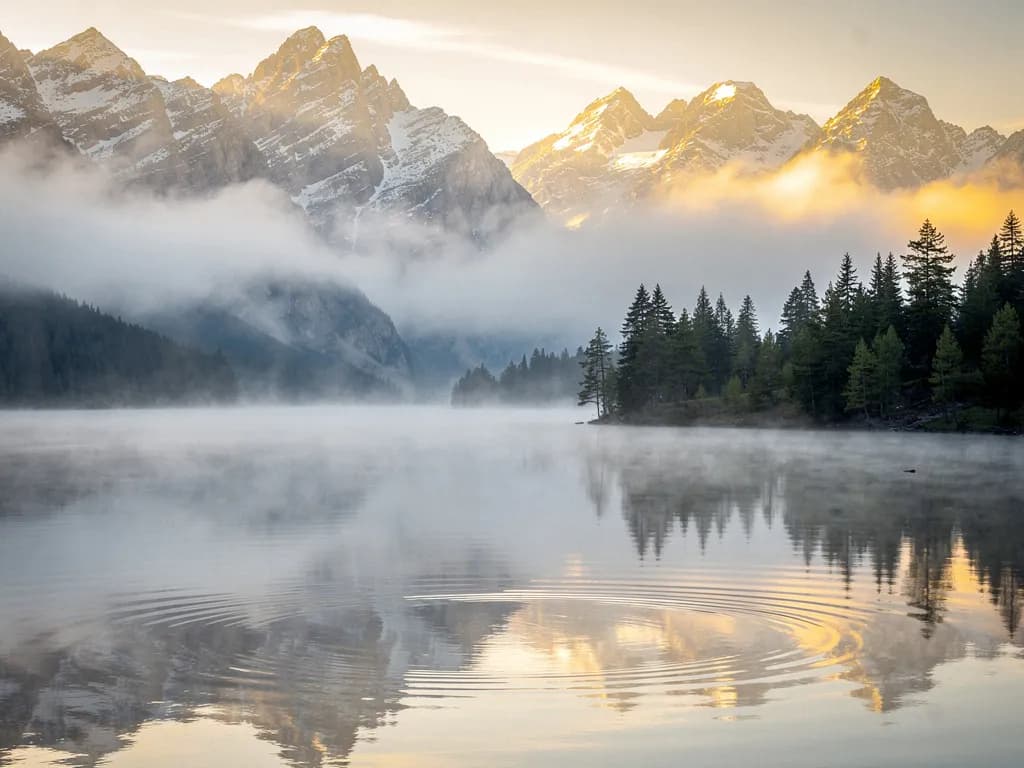
Key Tips:
- Specify atmospheric effects like fog, mist, or haze for depth
- Mention water reflections explicitly if you want them
- Include time of day and light direction for believable scenes
Atmospheric Urban Scenes
Template:
[Urban setting] at [time of day], [weather/atmosphere], [light sources and reflections], [mood], [camera spec]
Example:
"Rainy city street at night, neon signs reflecting in wet pavement, pedestrians with umbrellas passing storefronts, warm shop light spilling onto the sidewalk, puddles catching colorful reflections, moody cinematic atmosphere, slight motion blur on passersby, shot on Sony A7IV, 35mm f/1.8"
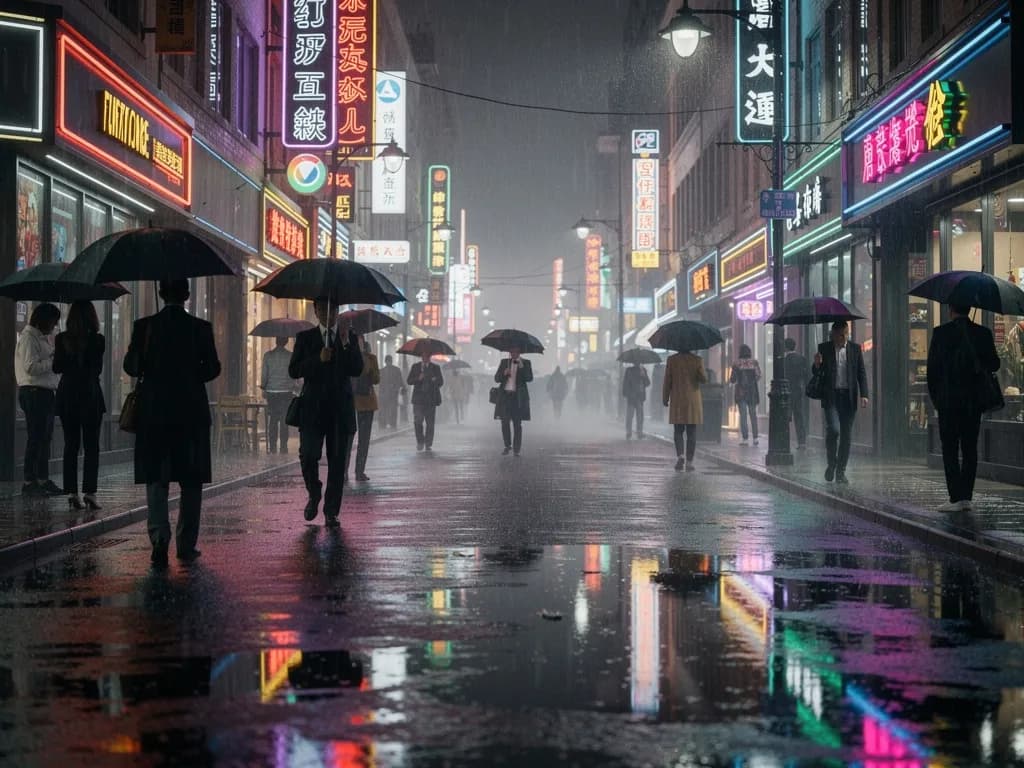
Key Tips:
- Wet surfaces and reflections add visual complexity the model handles well
- Describe multiple light sources (neon, streetlights, shop windows) for depth
- Include weather conditions like rain, fog, or snow for atmosphere
Common Issues and Solutions
Even with good prompts, you may run into these common challenges. Here's how to fix them.
Missing Important Details
Problem: Specified elements don't appear in the final image
Solution: Front-load the missing detail by moving it to the beginning of your prompt. The model gives more weight to earlier words.
Inconsistent Style
Problem: The image mixes multiple visual styles or feels incoherent
Solution: Specify one clear style reference (a camera, film stock, or artistic movement) rather than combining several competing styles.
Unwanted Elements Appearing
Problem: The image includes objects or artifacts you didn't ask for
Solution: Use positive phrasing to steer the model. Instead of wishing you could say "no watermark," describe "clean image, professional photography." Add more detail about what should fill the space.
Prompt Too Vague
Problem: The image looks generic or doesn't match your vision
Solution: Aim for 30 to 80 words with specific details. Add a lighting description, a camera reference, and at least two material or texture descriptors to ground the scene.
Poor Lighting Quality
Problem: Lighting looks flat or unrealistic
Solution: Be explicit about light sources, direction, and quality. "Warm golden light from a window on the left" produces better results than just "warm lighting."
Text Not Rendering Correctly
Problem: Text in the image is garbled or misspelled
Solution: Keep text short (1 to 4 words), place it in quotes in your prompt, and describe a clear surface for it (a sign, a book cover, a storefront). Avoid long sentences or small text.
Start Creating with Flux 2 Pro
Flux 2 Pro's VLM-powered architecture makes prompting more intuitive than ever. Write in natural prose, front-load your subject, add specific lighting and camera details, and aim for 30 to 80 words. That's the formula for great results.
The best way to improve is hands-on practice. Try these techniques with our AI image generator to see how different prompt structures change your results. Start with the templates above and adjust them to match your creative vision.
Ready to explore more AI tools? Compare Flux with Nano Banana Pro for a different approach to image generation, try Krea 2 for film, anime, and painted styles, learn about video generation with WAN 2.1, or browse our complete suite of creative tools to expand your creative capabilities.
Sources & Citations
This guide has been compiled based on research and expert insights from the following sources:
Ready to Create Amazing Images with Flux 2 Pro?
Put your new prompting skills to use with our AI image generator. Create stunning visuals using the techniques you've just learned.