How to Turn Slides into Videos with AI
Learn how to turn slides into videos with AI. Animate presentations, add narration, and export polished ai presentation video summaries free on Ambience AI.
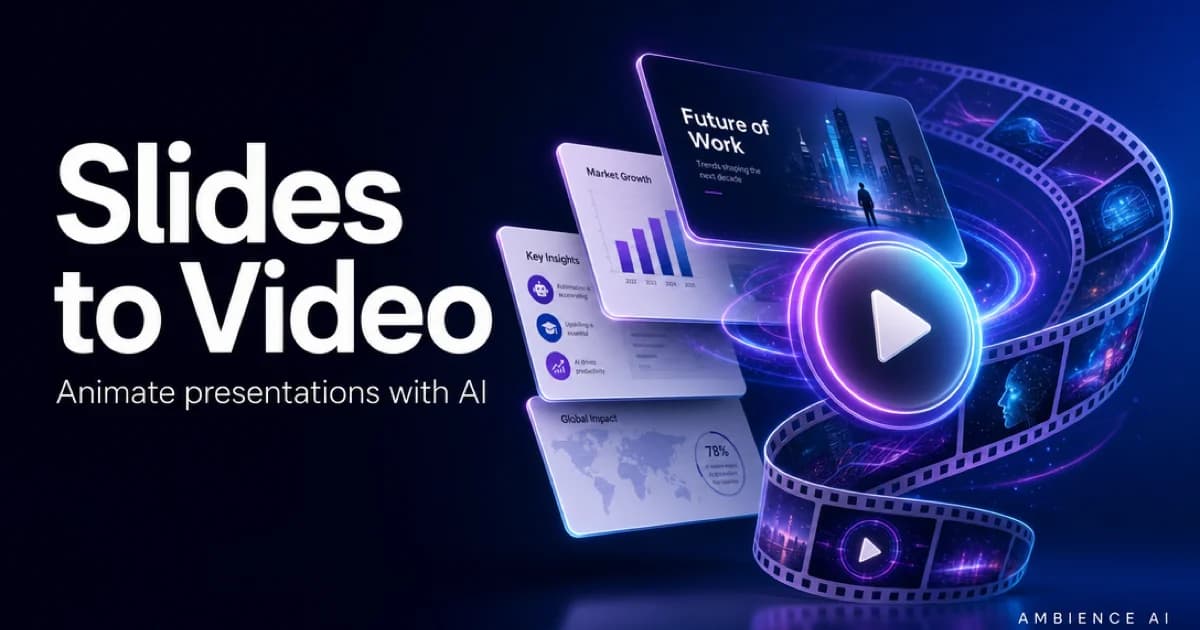
A static slide deck asks people to sit in a room and follow along. A video meets them where they already are, in their inbox, feed, or docs, and plays on its own. Turning slides into video used to mean hiring an editor or learning motion graphics, and now AI does the heavy lifting for you.
This guide walks through how to turn slides into videos with AI on Ambience AI, from your first frame to a narrated, shareable presentation video.
🎬 Why Turn Slides into Videos
Slides are built for a live speaker. The moment that speaker leaves the room, a deck loses most of its context and momentum. Video carries the story on its own, so your message lands the same way whether someone watches it live, on a commute, or six months later.
Wider Reach
One video plays everywhere your audience already is
A video summary drops straight into email, social feeds, landing pages, and knowledge bases. Instead of asking prospects, teammates, and clients to open a deck and imagine your voiceover, you hand them a finished story they can watch in under two minutes.
Stronger Retention
Motion and narration hold attention longer than bullet points
Animated transitions, a steady voiceover, and light background music keep viewers watching to the end. Pairing what people see with what they hear helps the core ideas stick, which is why explainer videos and product walkthroughs outperform flat slides for recall.
Easy Reuse
Repurpose one deck into many pieces of content
Once your slides are a video, you can clip highlights for social, embed the full cut on a landing page, and refresh the narration when details change. A single afternoon of work becomes a library of assets you can share for months.
🧭 How to Turn Slides into Videos with AI
The workflow is the same whether you start from a finished deck or a rough outline. You bring the ideas, and AI generates the visuals, animation, and narration around them.
Getting Started
Create a free account
to start with free credits, then follow these steps:
- Outline your slides. Break your presentation into scenes. Each slide becomes one beat of the video, so keep every scene to a single clear idea with a short headline and a supporting line.
- Generate slide visuals. Use the AI Presentation Image Generator to create clean, on-brand backgrounds and hero images for each scene. Describe the mood, layout, and colors you want, and generate a set of matching frames.
- Animate each scene into video. Bring your frames to life with the AI Video Generator. Add gentle camera moves, transitions, and motion so a still slide becomes a living shot.
- Add narration and music. Write a script for each scene, generate a natural voiceover, and layer in soft background audio so the presentation flows from one idea to the next.
- Sequence and export. Order your scenes into a single timeline with the AI Story Video Maker, review the pacing, and export a finished video summary ready to share.
Pricing
Getting started is free. New creators receive credits to generate images, video, and narration, so you can turn a short deck into a full video without paying upfront. Standard image generations cost 25 each, and you only spend credits on the scenes you actually render. See the pricing page for full details on plans and credit packs.
💡 Best Prompts for Slide-to-Video Narration
Strong prompts describe the scene, the motion, and the mood in plain language. Here are real slide-style clips generated on Ambience AI. The title clip comes from a video prompt, and the two data slides come straight from the chart generator, which builds animated charts from your numbers with every label and axis rendered sharp. Prompts you can copy for common presentation moments follow below.
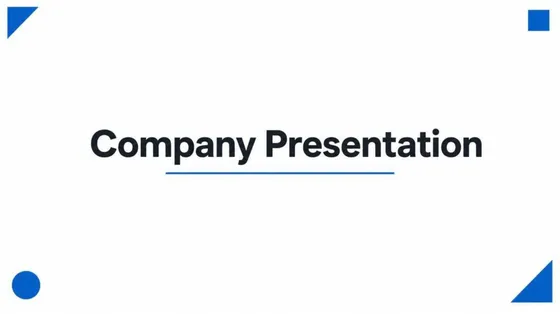
A static title slide brought to life with elegant motion.
Prompt: An animated corporate presentation title slide, a bold heading and minimalist geometric shapes elegantly sliding and fading into place on a clean white background, professional blue accents, smooth po...
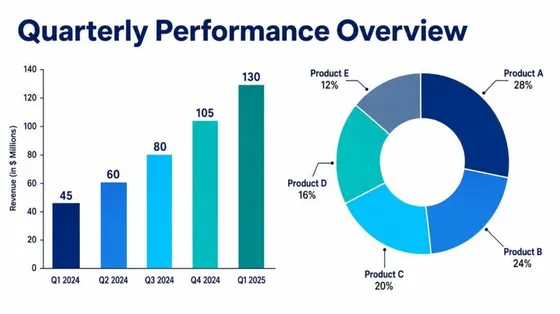
A data slide generated with the chart tool. The bars animate up from real values, and every label stays sharp.

A trend slide that draws itself. Chart videos come straight from your data, so the axes and numbers are always readable.
Title and Intro Scenes:
A clean title slide for a product launch, deep navy background with a soft gradient, bold centered headline space, subtle floating light particles drifting upward, slow gentle zoom in, calm and confident mood.
Data and Results Scenes:
A minimal business slide showing an upward growth chart, soft studio lighting, muted teal and white palette, thin animated lines drawing the trend from left to right, steady and professional pacing.
Feature and Product Scenes:
A modern app interface floating on a light gradient backdrop, gentle parallax drift, soft shadows, one feature highlighted with a smooth glow, bright and optimistic tone suited to a software walkthrough.
Closing and Call-to-Action Scenes:
A warm closing scene with a wide horizon at golden hour, space for a short call to action headline, slow push-in camera move, hopeful and inviting atmosphere to end the presentation on.
✨ Best Practices for AI Presentation Videos
- One idea per scene. Resist the urge to cram a whole slide of bullets into a single shot. Split dense slides into two or three scenes so each point gets room to breathe.
- Keep a consistent look. Reuse the same palette, lighting, and framing across scenes so the video feels like one cohesive presentation rather than a set of unrelated clips.
- Match narration to motion. Time your voiceover so each key phrase lands as the matching visual appears. Short sentences are easier to pace than long ones.
- Lead with the payoff. Open with the result or the promise, then explain how you get there. Video viewers decide within seconds whether to keep watching.
- Design for sound-off viewing. Many people watch muted at first, so put your headline text on screen and let the narration reinforce it for anyone listening.
- End with a clear next step. Close every presentation video with one specific action, whether that is booking a call, trying a tool, or reading a follow-up.
🔗 More AI Video Tools
Keep building on your slide-to-video workflow with these tools and resources:
- AI Presentation Image Generator: Create polished slide backgrounds, hero frames, and pitch deck visuals from a text description.
- AI Video Generator: Turn text prompts and still images into short animated clips for each scene of your deck.
- AI Story Video Maker: Sequence your scenes, narration, and music into a single finished video summary.
- Explore Community Creations: Browse what other creators are making for inspiration and prompt ideas.
Turning slides into videos with AI takes the polish that once required a full production team and puts it within reach of any creator with a deck and a story to tell.